The installation should be performed by your Draycir Partner or by an IT competent member of staff. Make sure you have administrator level rights on the user account performing the installation or launch the installer with administrator rights.
If you are upgrading a previous version of Credit Guardian please backup your data before hand. You will need to upgrade all the computers that have the older version of the software installed. Credit Guardian will update the database containing your information. If you attempt to access this updated database with a previous version of Credit Guardian you may corrupt your data!
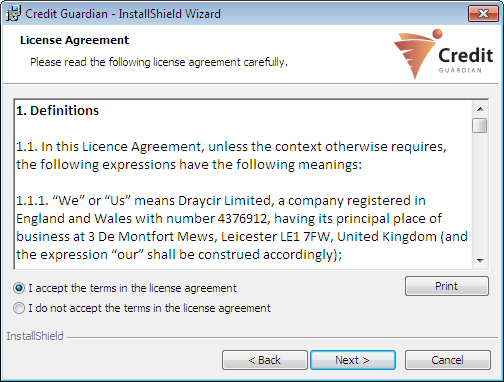
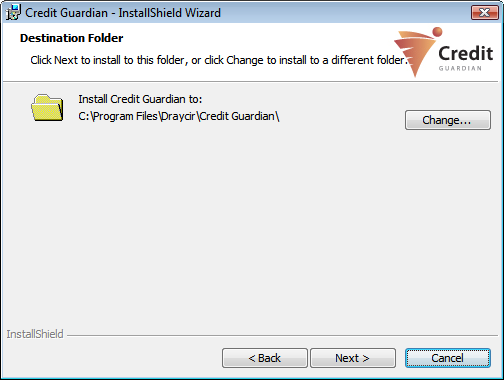
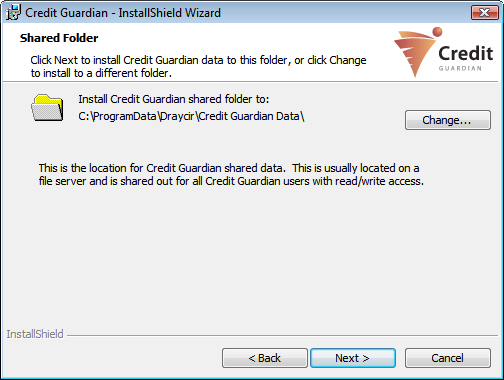
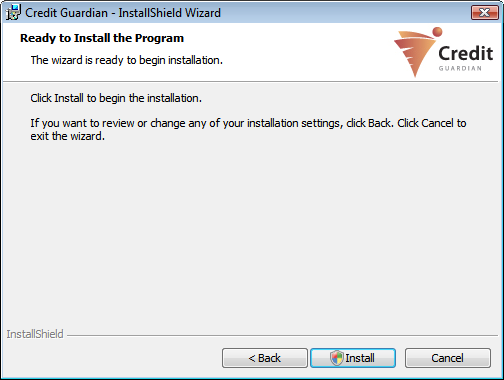
When the installation is complete Credit Guardian is launched automatically. You can also run Credit Guardian by double-clicking on the icon that has been placed on your desktop or from the Start Menu. On the first launch the Startup Wizard will run.
|
Copyright (c) 2007 - 2010 Draycir Limited. All rights reserved.
|
|
What do you think about this topic? Send feedback!
|


