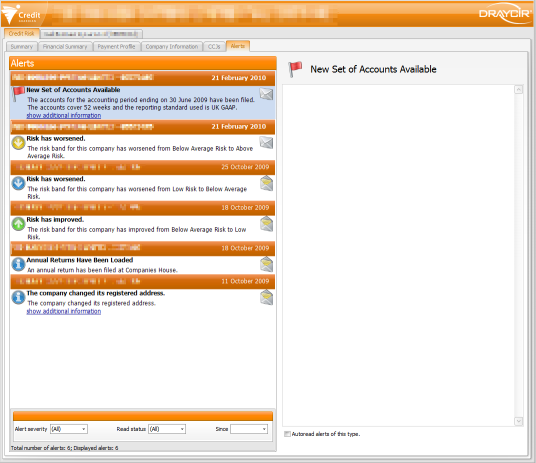
The Alerts tab displays the alerts that Credit Guardian has collected for this company. Alerts will be collected from the day you start monitoring the company.
Each time you run Credit Guardian it will check if there any alerts available. If alerts are available they will be downloaded and added to the list as unread alerts. Alerts are processed weekly so make sure you run Credit Guardian at least once a week to obtain new alerts. The email address that was registered with your Credit Guardian account will also be sent a weekly email listing any alerts that are available for the companies you are monitoring.
There are various types of alerts and each type of alert has a severity of either critical, warning, important or information. See Alert Types for more information.
Each new alert added to the alerts list is marked as unread. You can mark an alert as read by first selecting it then selecting another alert or by right-clicking on the alert and selecting Mark as Read. If you mark an alert as read in the Global Alerts screen it will also be marked as read in the company alerts screen.
Unread alerts display the  icon while read alerts display the
  icon.
icon.
The read and unread status is based on each Credit Guardian user, i.e. if any alert is marked as read for one user it will not be marked as read for other users.
To mark all alerts as read, right-click in the alerts list and select the menu option Mark All as Read

The alerts filter allows you to narrow down the types of alert that are displayed in the alerts list. One or more filters can be used at any time. The filters available are:
Alert severity
You can select one of the following options to only see alerts of that severity
Read status
You can select one of the following options
Since
You can filter only to show alerts from a certain date. You can select the date by pressing on the small arrow on the right-hand side.
By ticking this option, any future alerts of the type currently selection will automatically be marked as read. You may want to do this on the types of alert that you are not interested in.
You can add notes against each alert that is shown. For example, if a Director Resigned alert came in for one of your customers and you knew they had retired, you could make a note of it against the alert for other users of Credit Guardian to see.
|
Copyright (c) 2007 - 2010 Draycir Limited. All rights reserved.
|
|
What do you think about this topic? Send feedback!
|


 Group
Group