During the start-up wizard you would have been asked to create a username which you use to log into Credit Guardian. You can easily add more users to Credit Guardian by using the Administration Options.
To add a user follow these steps:
- Run and logon to Credit Guardian with a user who as administrator access. This is usually the name of the user that was created during the setup wizard.
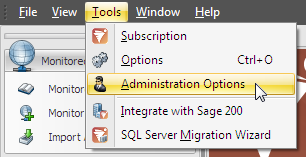
- From the menu select Tools and click Administration Options.
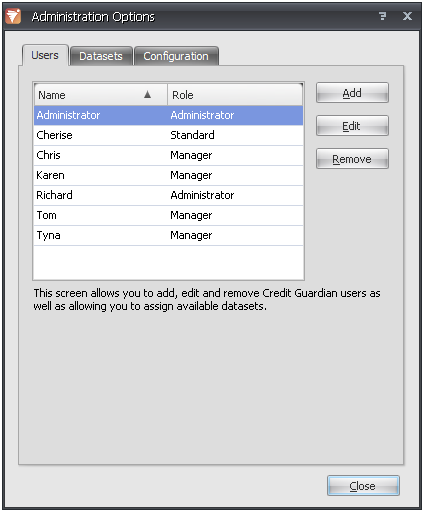
- By default the User tab is shown and displays the current list of Credit Guardian users. Click the Add button.
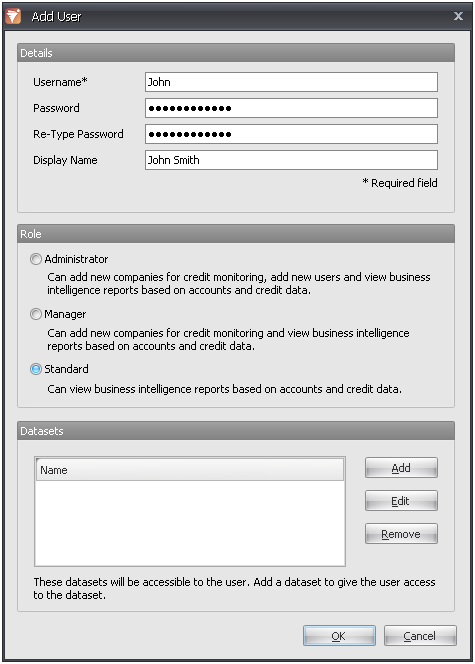
- In the Details section, type in the Username edit box the name the user will use on the logon dialog box. As you type in the Username it will also copy these details to the Display Name edit box. This can be the full name of the user and is used for display purposes only.
- Type in the Password edit box, the password you want to use and repeat the same password in the Re-Type Password edit box.
- Select the type of role that will be assigned to this user in the Roles section; Administrator, Manager or Standard. See the dialog for a description of each role.
- If you have connected Credit Guardian to your accounts software and would like this user to see the combined accounts business intelligence data you will need to give this user access to one or more datasets (accounts data). If not, go to step 13.
- In the Datasets section click the Add button.
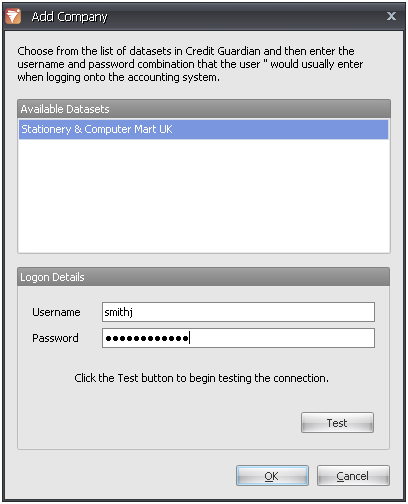
- Select the dataset you want the user to have access to. In the Logon Details section enter the Username and Password that this user requires to logon to the accounts system. Credit Guardian will use this username and password to logon to the accounts system when this user is in Credit Guardian.
- Click the Test button to make sure Credit Guardian can connect to the accounts system.
- Click OK to add this dataset to the ones the user is allowed to access.
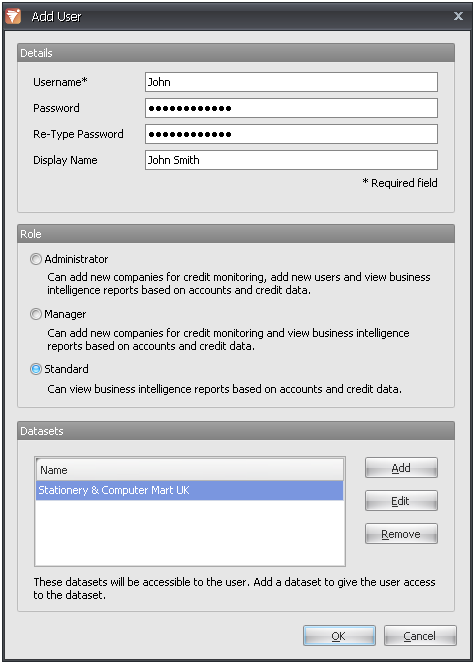
- To give the user access to more datasets, please repeat the above steps.
- Click OK to complete the Add User dialog.
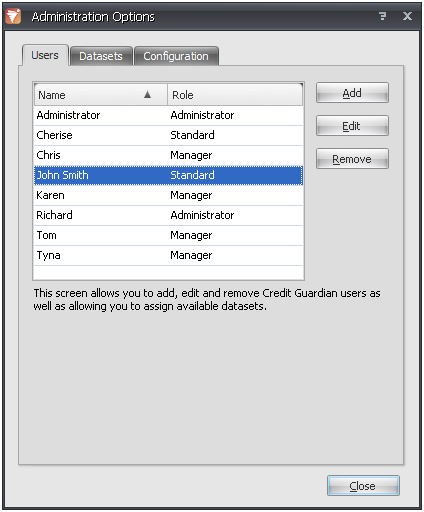
- Click Close to exit the Administration Options dialog.


