Purchasing a subscription is easy and can be done from within Credit Guardian using a credit or debit card. Once you purchase a subscription you can begin monitoring more of your customers and suppliers. Note: At any point during the ordering process you can go back to any of the previous screens by either pressing the back button or selecting in the screen in the bread crumb trail located near the top of the screen.
Purchase Subscription instructions
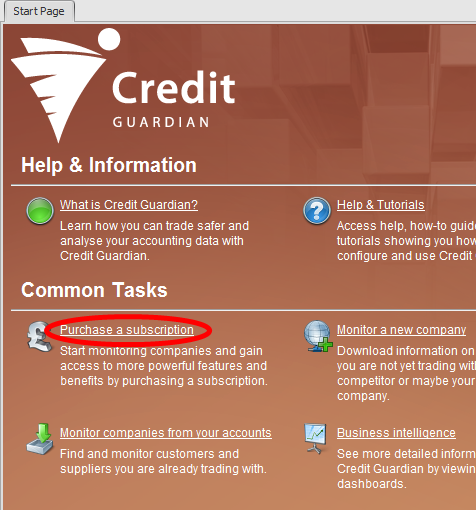
- Run Credit Guardian and select Purchase a Subscription from the Start Page.
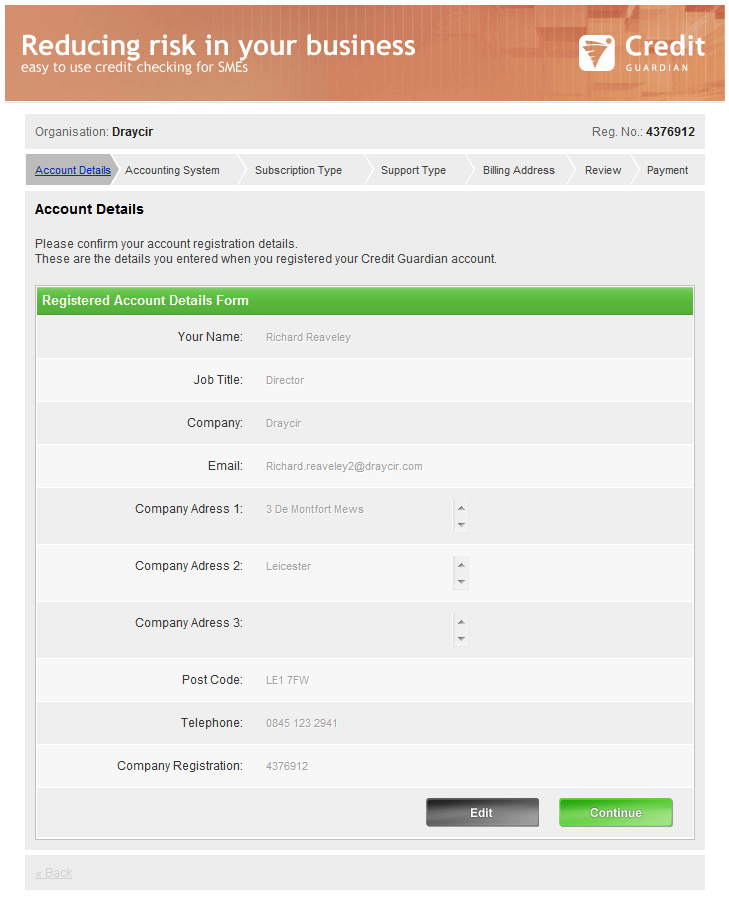
- Review your account details. These are the details you entered when you registered and created a Credit Guardian account. If your details are correct click Continue, otherwise click Edit to change your details.
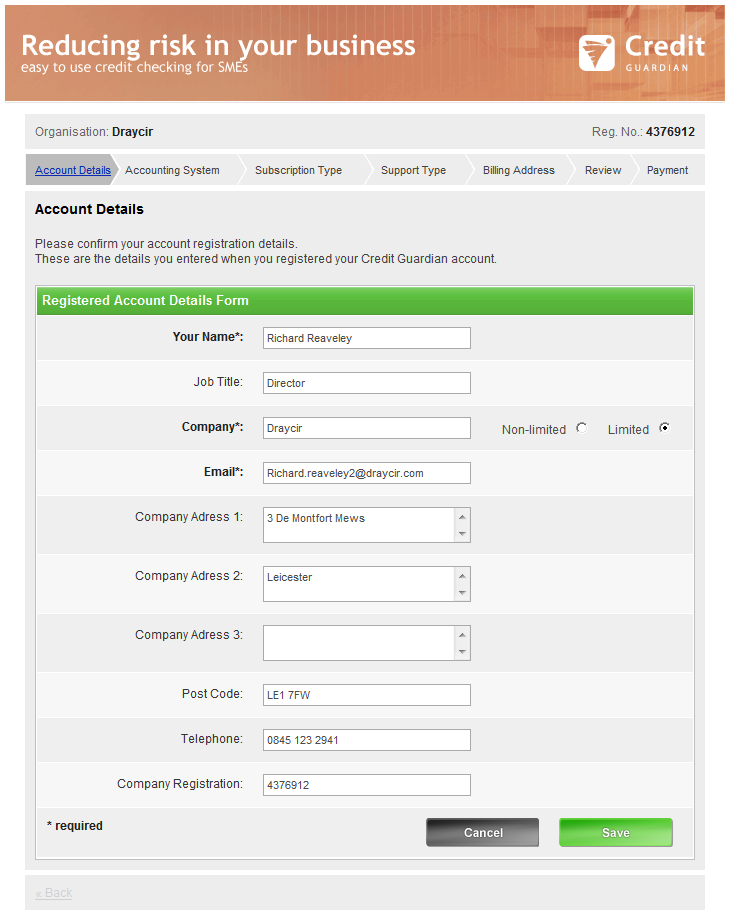
- If you selected Edit the following screen will appear. Update your details as appropriate and click Save.
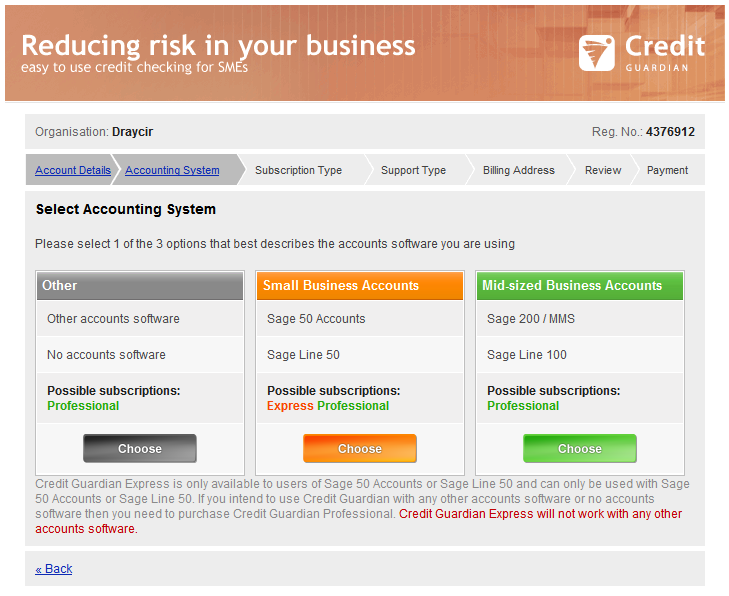
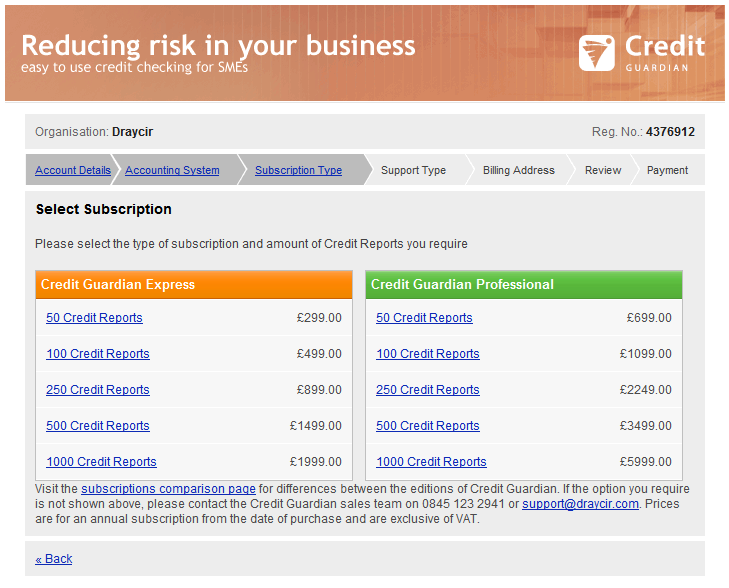
- Credit Guardian has two types of subscriptions available; Express and Professional. If you are linking to Credit Guardian to Sage Line 50 or Sage 50 Accounts you can choose either Express or Professional. If you are linking Credit Guardian to a different accounts system or not linking to an accounts system at all, you can other choose the Professional subscription.
- Important: if you purchase an Express subscription and are not linked to Sage 50 Accounts or Sage Line 50, Credit Guardian will not function.
- Click the Choose button on the option appropriate to your situation.
- A list of available subscriptions options are shown along with pricing information. Subscriptions are based on the number of companies you want to purchase credit reports on and monitor. Select the subscription you want by clicking on it.
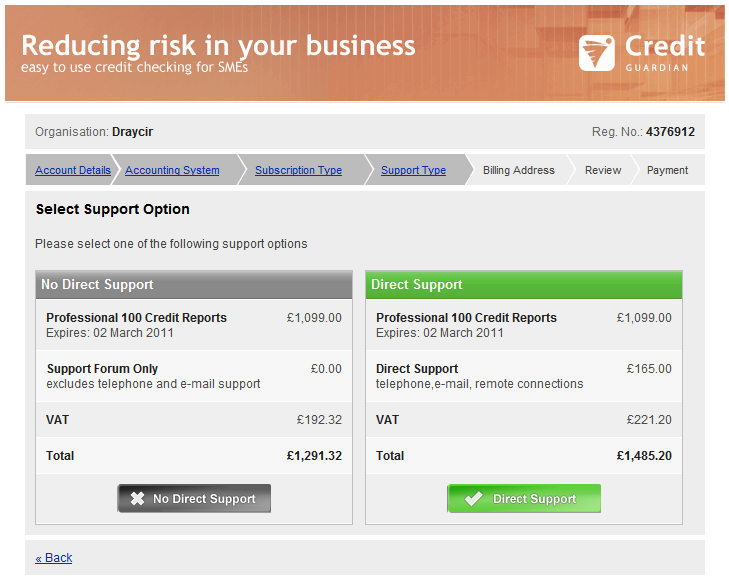
- This screen enables you to add direct telephone and e-mail support. If you choose No Direct Support then you can post support questions to the Draycir support forum. Choosing Direct Support enables you to contact Draycir support staff via email and telephone, and also includes remote connections where we can remotely get access to your desktop to help you resolve any issues. To choose support click the Direct Support button.
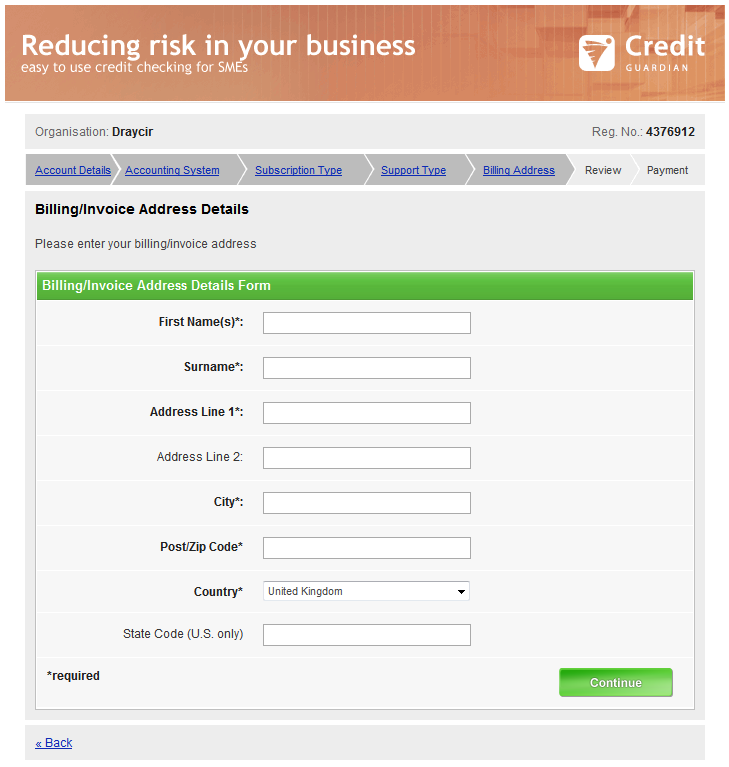
- Enter your billing/invoice details. This should be the name and address of the person or company where the invoice will be sent to. After you have entered your details click Continue.
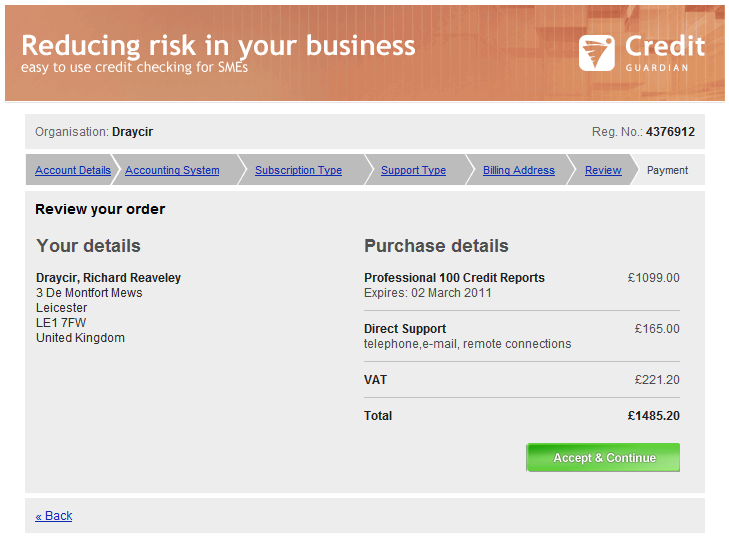
- Please review your order to ensure it is correct. Once you are happy with your selection click Accept & Continue to go to the payment section.
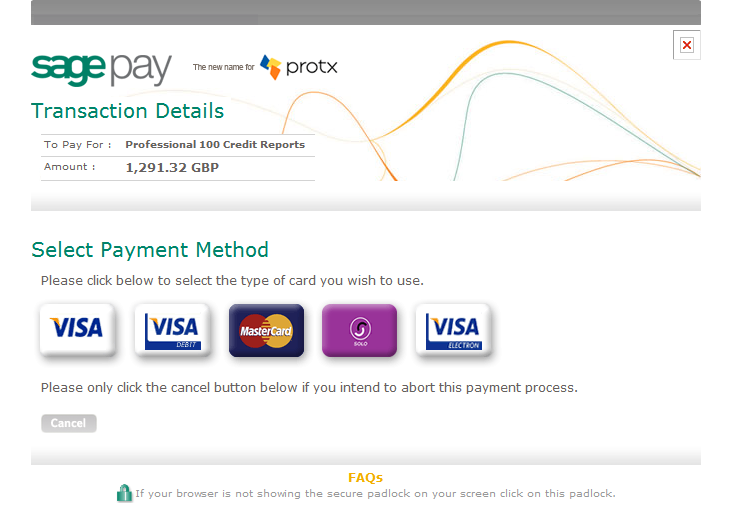
- You will now be taken to our payment providers page which is SagePay. The total amount of the transaction will be displayed. Select your payment method by clicking on the appropriate credit or debit card button.
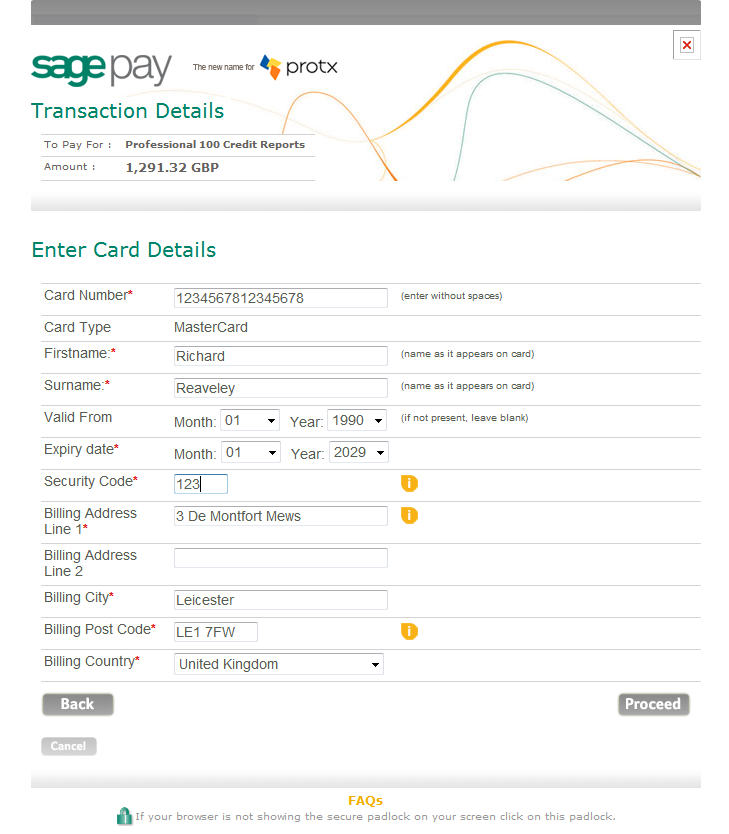
- Next you will need to enter your card payment details. The name and billing address will automatically filled in from the details you provided in the Billing/Invoice section. Once you have entered your card details click Proceed.
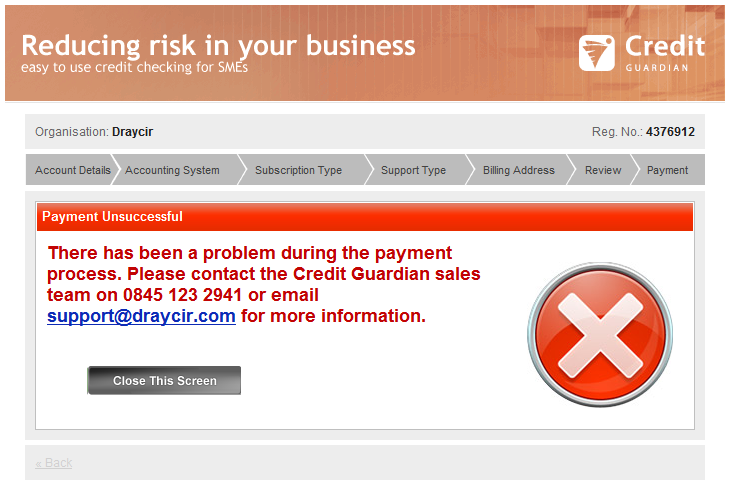
- If an error occurs during the payment process you may a message like below. If you do see this message then please contact Draycir on 0845 123 2941.
- If your payment is successful then the following screen will be displayed. Click Close This Screen to close the screen and return you to the Start Page.
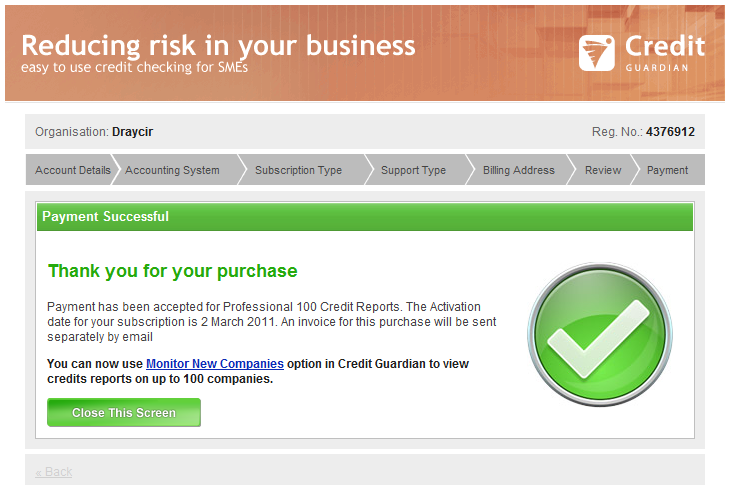
Once your payment has been successfully received your subscription is activated and is available to use straight away. See Monitor a new company and Monitor companies from your accounts for more information on monitoring companies.


